

HP Print Service Plugin
HP Inc.
Printing from an Android phone can feel strangely complicated when the document is ready but the printer is not visible in the share menu. HP Print Service Plugin is designed to remove that extra step for compatible HP printers. I tested it as a practical productivity tool rather than as a full printer-management suite, and my overall impression is that it does one important job quietly: it lets other Android apps send print jobs to HP hardware.
That narrow purpose is also the key to understanding it. This is not a document editor, a cloud storage service, or a replacement for a complete printer control app. It works as a system printing component, so the experience depends heavily on the Android device, the app you are printing from, the network, and the printer itself. When those pieces line up, printing feels almost invisible. When they do not, the plugin can be difficult to diagnose because most of the visible action happens in the app that opened the document.
Why this small productivity tool has earned so much trust
HP Inc. has maintained this Android printing component since May 14, 2013, and it has become a very widely used option. The listing shows more than a billion installs, with an average rating of 4.1 from roughly three million ratings and about 357 thousand written reviews. Those figures do not make every printing experience perfect, but they do tell me that this is an established utility rather than an obscure add-on that users must approach cautiously.
The app is free and rated for Everyone, which makes sense for a background-style printing service. It supports devices running Android 6.0 or later, and the current version is 23.2.6.3179. In everyday terms, that means many older Android phones can still use it, although compatibility with a particular HP printer remains more important than the age of the phone alone.
What I appreciate most is that its role is easy to describe. The plugin adds HP printing to apps that use Android's printing framework. I can open a file, photograph, email attachment, web page, or other printable content, choose the Android print option, and look for an HP printer without needing to export the file first. The exact choices vary by source app and printer, but the central workflow remains familiar.
Latest News

Uber Eats Under Pressure: What Happens When Delivery Goes Wrong

How QR & Barcode Scanner Adapts to Android and iOS Innovations

Why Waze Navigation & Live Traffic Is Your Essential Travel Companion

CapCut Mastery: Unleash Hidden Features for Pro-Level Editing

How OS Updates Enhance Roblox Adventures

Teacher Simulator: Exam Time Turns Quick Classroom Judgments into a Repetitive Loop
That makes it especially useful in homes where several people print from phones, in small offices where a computer is not always nearby, and in classrooms or shared workspaces where a quick paper copy is more convenient than transferring a file to another device. I also see value for anyone who receives a PDF on a phone and wants a physical copy immediately rather than opening a laptop just for one page.
There is a trust advantage in a focused tool like this. It is not asking me to move my whole document library into a new workspace simply to print. Instead, it appears when an Android app offers printing. That separation helps me understand what I am doing: I choose content in one app, select a printer through the system print flow, and send the job to an HP device.
The real workflow: printing from the apps you already use
The first thing I would tell a new user is to avoid looking for a traditional app icon and expecting a dashboard full of documents. The plugin's usefulness is usually found inside the Android print command. From a printable screen, I open the sharing or overflow menu, select the print option, choose the HP printer, review the available settings, and confirm the job.
Gallery
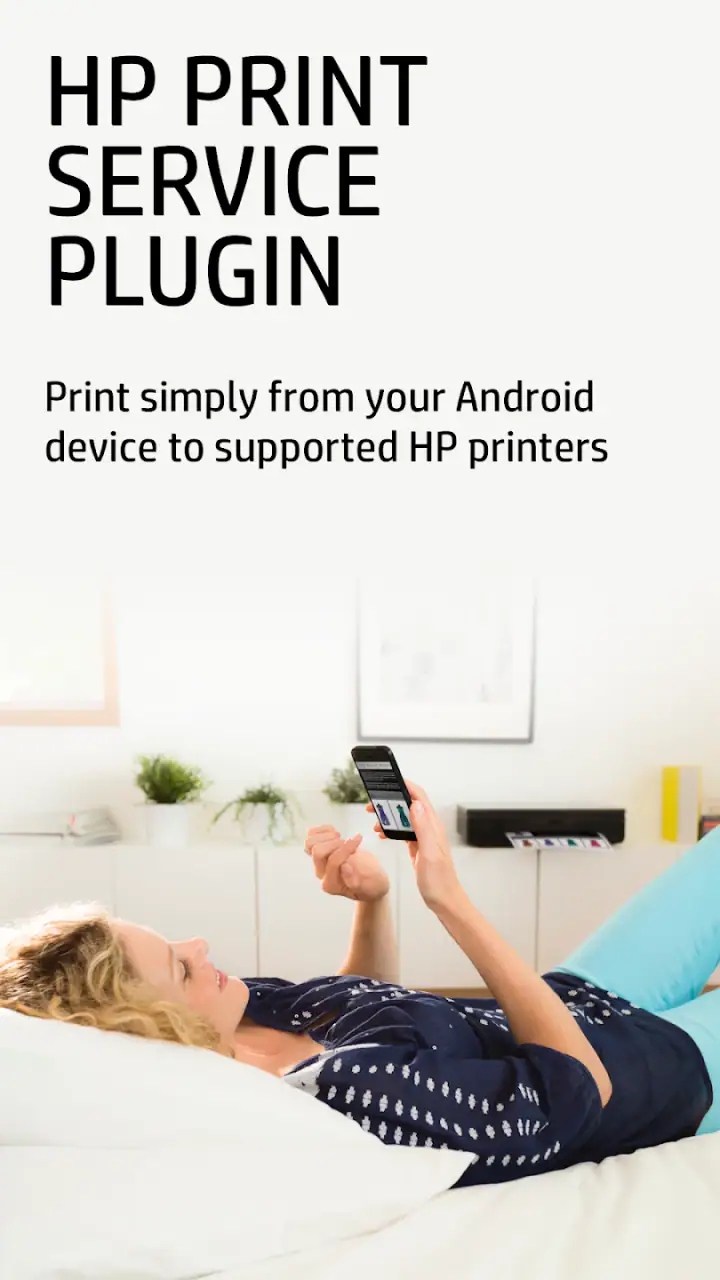
This is convenient because it keeps the original file in its source app. A PDF remains in the PDF reader, a photo remains in the gallery, and a message attachment remains in the messaging or email application. I do not need to create a duplicate simply to make it printable. That reduces clutter and also avoids a common mistake: printing an outdated copy that was exported earlier.
One practical tip is to check the document before opening the print panel. Some apps offer a clean print layout, while others print exactly what is visible or rely on their own export process. If a web page looks crowded, I would first use its reader view or save it as a PDF, then print that cleaner version. The plugin can connect the phone to the printer, but it cannot correct poor formatting created by the source app.
Another useful habit is to confirm the selected printer every time in a shared environment. If several HP devices are available, the printer list can become more important than the plugin itself. A familiar printer name or a clear device label saves paper and prevents the awkward discovery that a document went to another room.
I also recommend checking the preview rather than assuming the phone's screen is an accurate representation of the paper result. Margins, page breaks, image scaling, and color choices are often controlled by the source application or by the printer settings exposed during the system print process. A quick preview is particularly valuable for long web pages and documents containing tables.
Where it is strong, and where the experience becomes less certain
The strongest part of this plugin is its low-friction connection between Android apps and HP printers. I do not have to learn a separate document workflow, and I can print from more than one kind of content without switching tools. For a person who prints occasionally, that simplicity matters more than a large collection of extra controls.
It is also a sensible choice when the printer is already configured and the main need is sending jobs from a phone. In that situation, installing a full printer-management application may feel excessive. The plugin stays focused on the print action instead of turning a simple task into a larger account or device-management process.
The trade-off is that a system plugin can feel less transparent when something goes wrong. If a printer does not appear, the cause might be the phone's network connection, the printer's connection, Android's print service settings, the source app, or the device's compatibility. The plugin is not necessarily the cause, but it is the part users notice when the print command fails.
For that reason, I would troubleshoot in layers. First, I would check that the phone and printer are connected to the same local network when the printer depends on network discovery. Next, I would confirm that the printer is awake and ready. Then I would close and reopen the source document or restart the print flow. If the printer still does not appear, I would inspect Android's printing settings and check whether the plugin is enabled.
This sequence is more useful than repeatedly tapping the print button. It separates discovery problems from document problems. If the printer is visible but the output is wrong, the source app or print options deserve attention. If no HP printer appears at all, the connection and system service deserve attention first.
Permissions, data-sensitive moments, and visible choices
When I judge a utility that sits between my documents and a physical device, I pay close attention to the moments where information could be exposed. Printing is inherently data-sensitive: a document may contain personal details, work material, school information, or images that should not be left unattended. The most important privacy decision is often not inside the plugin but at the printer itself.
I would therefore avoid sending sensitive pages to a shared printer unless I can collect them immediately. A print queue can create a physical privacy problem even when the phone workflow feels secure. The same caution applies to printing over a network that I do not control. A home printer on a trusted network is a different situation from a public or shared connection.
The plugin's system-level role also means I want to pay attention to Android's visible controls. I would review the service in the phone's printing settings, check whether it is enabled, and disable it if I no longer use HP printing. That gives me a straightforward way to control whether the service participates in the print menu.
I would also keep the operating system and the plugin current where possible, not because an update guarantees a perfect experience, but because printing depends on several connected components. If a phone has recently changed its network behavior or Android print settings, revisiting the service configuration can be more productive than assuming the printer has failed.
One subtle point is that the plugin is not a private document vault. I would not treat it as a place to store files, organize records, or manage sensitive archives. Its job begins when another app offers printable content and ends when the print request is handed toward the HP printer. For document storage, editing, scanning, or long-term organization, a dedicated app is a better fit.
That boundary is helpful when deciding what access and control I expect. I want the printing service available during a print action, but I do not need it to become the center of my digital workspace. Keeping those roles separate makes the setup easier to understand and reduces the temptation to use the wrong tool for document handling.
How much control does the user really have?
The user retains meaningful control through the Android print interface. I can decide which content to print, choose an available HP printer, review the job, and cancel the action before confirming it. The exact settings depend on what the printer and source app expose, so I would not assume that every document offers the same page range, color, orientation, or paper choices.
This variation is one of the plugin's practical limitations. Someone expecting a complete control panel may prefer HP's broader printer software or the printer's own interface, particularly when they need maintenance tools, scanning, ink information, or device-specific features. The plugin is better understood as the bridge that makes printing available inside other apps.
That distinction also helps answer whether an HP account is necessary. For the basic purpose of sending printable content through Android's print flow, I would start with the plugin and the printer connection rather than assuming I need to create an account. If I want broader printer management beyond this focused print function, a separate HP application may be more appropriate, with its own setup and controls.
Users should also know that the plugin is not a universal solution for every Android printing situation. It is specifically intended for HP printers. If the household uses printers from several manufacturers, a broader Android printing approach or the relevant manufacturer's service may be more convenient. Installing several printer services can also make the print selection screen harder to understand, so I would enable only what I actually use.
There is a similar trade-off with older hardware. Android 6.0 or later is supported, but that does not mean every HP printer from every generation will behave identically. Printer firmware, network configuration, and the capabilities exposed by the device can affect the result. I would check the printer model's compatibility before relying on the plugin for an important deadline.
Everyday scenarios where it earns its place
Imagine receiving a signed form as a PDF while away from a computer. I can open it on my phone, use the Android print action, select the nearby HP printer, inspect the preview, and produce a paper copy without moving the file through another service. That is the kind of small task the plugin handles well: one document, one printer, and minimal setup.
For a family, it can be useful when one person needs a school worksheet, another wants a travel confirmation, and someone else needs a return label. Each person can print from the app where the file already exists. The practical benefit is not advanced printing technology; it is avoiding the repeated step of sending every file to a shared computer.
In a small office, I would use it for quick drafts or reference pages, while keeping a computer-based workflow for large batches and carefully formatted documents. Phone printing is convenient for occasional jobs, but a desktop application remains easier when I need to compare multiple files, manage a long queue, or apply precise layout rules.
For photographs, expectations should be realistic. The plugin can make a photo printable, but the final appearance depends on the printer, paper, image quality, and available settings. I would use the phone's editing tools first if the image needs cropping or correction. Printing directly from an unedited gallery image is fast, but it may not produce the framing I wanted.
I would skip this plugin if I rarely print, do not own an HP printer, or need scanning and printer maintenance in the same interface. I would also choose a broader solution if my main requirement is managing a mixed fleet of printers. The focused design is an advantage only when the printer and the intended workflow match it.
My cautious verdict after using it as a daily utility
HP Print Service Plugin is at its best when you want a quiet, direct bridge from Android apps to an HP printer. It is free, familiar to many Android users, and focused enough that occasional printing does not require learning a large new application. The 4.1 average and enormous install base suggest that it solves a common need, although they should not be read as a guarantee that every printer or network setup will be effortless.
My recommendation is strongest for people who already have a compatible HP printer and want to print PDFs, photos, pages, or attachments from the phone. I would install it, enable it in Android's printing settings, test it with a harmless one-page document, and then save the workflow for everyday use. That initial test is worthwhile because it confirms discovery, paper handling, and the printer's available options before an urgent job arrives.
I would remain cautious with private documents, shared printers, and unfamiliar networks. I would also remember that this is a print service, not a complete HP control center. If I need scanning, maintenance, detailed device information, or broader printer administration, I would look beyond the plugin rather than treating its limited scope as a defect.
In the end, HP Print Service Plugin succeeds by staying close to the Android print command. It gives users a clear choice at the moment they need paper, without forcing every document into a separate workspace. Its weaknesses appear when users expect it to solve network discovery, formatting, printer maintenance, or cross-brand compatibility. For straightforward HP printing from Android, I consider it a practical choice; for anything more involved, I would pair it with a fuller workflow and keep the user's control over documents and print destinations firmly in view.
FAQs for HP Print Service Plugin
What is the HP Print Service Plugin used for?
The HP Print Service Plugin is designed to enable printing from Android devices to HP printers without needing additional software. It simplifies the process by allowing users to print photos, documents, and web pages directly from their Android smartphones or tablets, ensuring a seamless experience with compatible HP printers.
Is the HP Print Service Plugin compatible with all printers?
The HP Print Service Plugin is compatible with a wide range of HP printers. However, it's essential to ensure your specific printer model supports this plugin. Compatibility information is usually available on HP's official website. Non-HP printers may not be supported, so checking compatibility before downloading is crucial.
How do I set up the HP Print Service Plugin on my device?
Setting up the HP Print Service Plugin is straightforward. After downloading and installing the app from the Google Play Store, enable it in your device's settings under 'Printing Services.' Ensure your Android device and HP printer are connected to the same Wi-Fi network for seamless operation.
Does the HP Print Service Plugin support all file types?
The HP Print Service Plugin supports a variety of file types, including PDFs, photos, emails, and web pages. However, some specialized file formats may not be directly supported and may require conversion to a compatible format before printing. Always check file compatibility if you encounter issues.
Is there a cost associated with using the HP Print Service Plugin?
The HP Print Service Plugin is available as a free download from the Google Play Store. There are no in-app purchases or subscriptions required to use the basic printing functions. However, additional features or services offered by HP may come at an extra cost.
Pros
- Seamless integration with HP printers.
- Supports a wide range of file types.
- Easy to set up and use.
- Regular updates and improvements.
- Minimal impact on device performance.
Cons
- Limited to HP printers only.
- Requires a stable internet connection.
- Occasional connectivity issues.
- No advanced editing features.
- May not support all printer models.


